
Azure Explorer Gallery feed (extension)

Azure Explorer provides a lightweight tool window for browsing subscriptions, resource groups, and App Services without leaving your IDE.
▼ Download- Author
- Mads Kristensen
- Version
- 1.0.91
- Updated
- 2 hours ago
- Tags
- cloud, azure
- Supports
- VS 2022 VS 2026 VS 2022 (ARM64) VS 2026 (ARM64)
Azure Explorer for Visual Studio


Your Azure resources, right inside Visual Studio. No Portal tab-switching. No context loss. Just code and cloud, together.
Download from the Visual Studio Marketplace or get the latest CI build.
Requires Visual Studio 2026 or later on Windows 10+
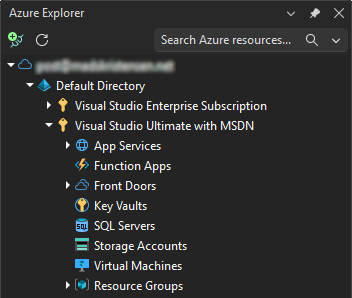
Miss the old Cloud Explorer?
When Microsoft removed Cloud Explorer from Visual Studio, many developers lost a crucial workflow. Azure Explorer brings it back — rebuilt from the ground up with modern authentication, better performance, and features Cloud Explorer never had.
What Can You Do?
🚀 Deploy & Debug Faster - Stream live logs, browse deployed files, drag-and-drop upload — without leaving your code
🔍 Find Anything Instantly - Search across all subscriptions with tag:Environment=Production syntax
🔐 Manage Secrets Securely - View, edit, and copy Key Vault secrets without touching the Azure Portal
💻 Connect to VMs - One-click RDP/SSH connections to your Virtual Machines
📦 Browse Storage - Navigate blob containers, upload files, copy connection strings
Supported Resources
| Resource Type | Key Actions |
|---|---|
| Resource Groups | Create, Delete (if empty), Open in Portal |
| App Services & Function Apps | Browse, Start/Stop/Restart, Stream Logs, File Browser, Drag & Drop Upload |
| Virtual Machines | Start/Stop/Restart, Connect via RDP/SSH, Copy IP Address |
| Storage Accounts | Create, Delete, Copy Connection String, Browse Blobs/Queues/Tables, Upload/Download |
| Key Vaults | Create, Delete, Manage Secrets/Keys/Certificates |
| SQL Servers & Databases | Copy Connection String, Browse Databases |
| Front Door | Browse Endpoints |
More resource types coming soon!
📖 Full Documentation - Detailed guides, troubleshooting, and tips.
Get Started in 30 Seconds
- Install from the Visual Studio Marketplace
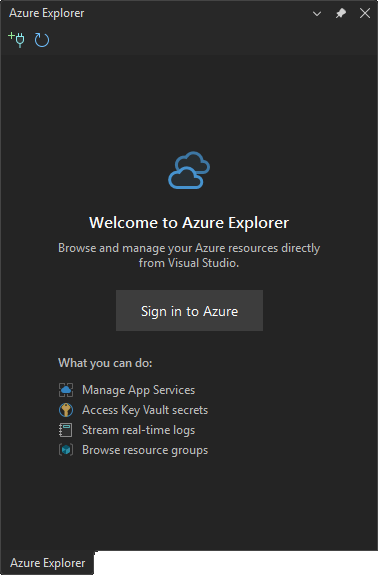
- Open via View → Azure Explorer
- Sign in with your Azure account (uses Windows native authentication)
- Explore — your subscriptions appear automatically
Keyboard Shortcuts
| Shortcut | Action |
|---|---|
Ctrl+Enter | Open selected resource in Azure Portal |
F5 | Refresh current view |
Enter | Expand/collapse or execute default action |
Delete | Delete selected item (with confirmation) |
FAQ
Q: Which Azure accounts are supported?
A: Personal Microsoft accounts, work/school (Entra ID), and accounts with multiple tenants. Uses Windows native authentication (WAM) for secure, seamless sign-in.
Q: Why don't I see all my subscriptions?
A: Check if you're signed into the correct account. You can also hide/show subscriptions via right-click. See Authentication docs for details.
Q: Is my data secure?
A: Azure Explorer never stores credentials. It uses your existing Visual Studio/Windows Azure credentials with Microsoft's authentication libraries. All API calls go directly to Azure.
Q: Can I use this with Azure Government or other sovereign clouds?
A: Not currently, but it's on the roadmap. Open an issue if this is important to you.
📖 See FAQ and Troubleshooting for more.
Works Great With
These extensions complement Azure Explorer for a complete Azure development experience:
- SQL Server Data Tools — Database development and deployment
- Cloud Sync — Sync VS settings across machines
Contributing
This is a passion project, and contributions are welcome!
- 🐛 Found a bug? Open an issue
- 💡 Have an idea? Start a discussion
- 🔧 Want to contribute? Pull requests are always welcome
If Azure Explorer saves you time, consider: