
Comment Studio Gallery feed (extension)

Enhance XML documentation comments with rich rendering, automatic reflow, collapsing, color-coded tags, and clickable issue links.
▼ Download- Author
- Mads Kristensen
- Version
- 1.0.223
- Updated
- 17 days ago
- Tags
- docs, xml, comments, documentation
- Supports
- VS 2022 VS 2022 (ARM64)
Comment Studio for Visual Studio


Download this extension from the Visual Studio Marketplace or get the CI build.
📖 Full documentation — detailed guides for every feature.
Stop wrestling with XML documentation comments. Comment Studio transforms how you write, read, and maintain code documentation in Visual Studio.
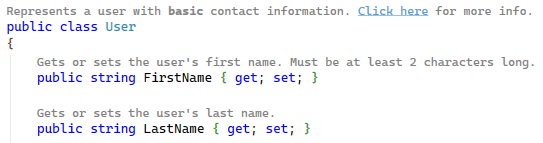
✨ Key Features at a Glance
- Rendered Comments — View XML docs as clean, formatted text (no XML noise)
- Markdown Support — Use
**bold**,*italic*,`code`, and[links](url)in comments - Comment Reflow — Automatically wrap comments or reflow the current comment with Alt+Q, with optional preservation of standalone
<para/>lines - Collapse/Expand — Hide comment blocks to focus on code, expand when needed
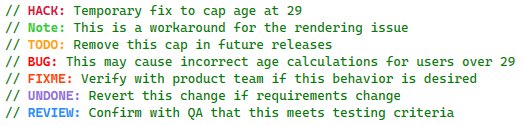
- Color-coded Anchor Tags — TODO, HACK, BUG, FIXME, NOTE highlighted in distinct colors, plus custom tags
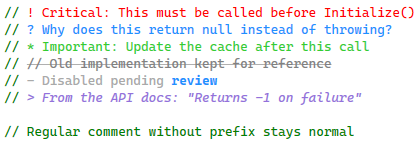
- Better Comments Style — Prefix-based highlighting (
!,?,*,//,-,>) for visual differentiation - Solution-Wide Code Anchors — Browse all TODOs, HACKs, and notes across your entire solution
- Clickable Issues —
#123links directly to GitHub/GitLab/Azure DevOps issues - Link Anchors — Navigate to other files, lines, or named anchors with
LINK:or uppercaseLINKsyntax - Comment Remover — Bulk remove comments with smart preservation options
- File & Project Exclusions — Disable Comment Studio for matching files with
.editorconfig - Theme-aware — Works with light and dark Visual Studio themes
Supports: C#, VB.NET, F#, C++, TypeScript, JavaScript, Razor, SQL, and PowerShell
Rendered Comments
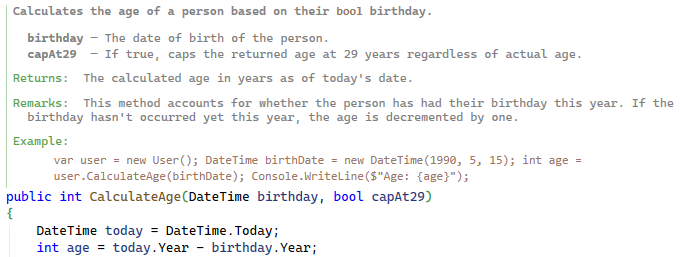
See your documentation, not the XML. The Full rendering mode strips away XML noise and displays your docs with proper formatting.
Rendered comments match the editor font size by default. Customize their fonts, sizes, and colors under Tools > Options > Environment > Fonts and Colors using the Rendered Comment - Text, Heading, Code, and Link entries.
Color-Coded Tags & Better Comments
TODO, HACK, BUG, NOTE, and more are highlighted with distinct colors. Uppercase tags can be written bare (TODO fix this); lowercase or mixed-case tags require : or ! (todo: or Todo!). Prefix-based highlighting (!, ?, *, //) provides additional visual differentiation.
Code Anchors
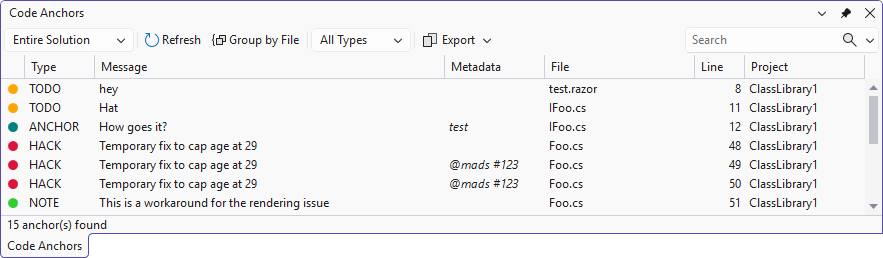
Track all your TODOs, HACKs, and notes across your entire solution in one tool window.
Issue Links & Link Anchors
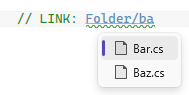
#123 references become clickable links to GitHub, GitLab, Bitbucket, or Azure DevOps. LINK: syntax lets you navigate to files, lines, and named anchors; uppercase LINK may also be used without a delimiter.

Why Comment Studio?
XML documentation comments are essential for IntelliSense and API documentation, but they come with frustrations:
- Hard to read – XML tags clutter the actual documentation content
- Tedious to format – Manual line wrapping and alignment is time-consuming
- Visual noise – Long comment blocks obscure the code you're trying to read
- Easy to miss important notes – TODO and HACK comments blend into the code
Comment Studio solves all of these problems, letting you focus on writing great documentation instead of fighting with formatting.
Getting Started
- Install the extension from the Visual Studio Marketplace
- Open any C# or VB.NET file with XML documentation comments
- Try rendering modes – Use Edit > Comment Studio to switch between Off, Compact, and Full rendering
- Try reflow – Place the caret in an XML documentation comment and press Alt+Q, or use Format Document (Ctrl+K, Ctrl+D) to reflow all comments
- Try collapsing – Press Ctrl+M, Ctrl+C to collapse all comments and focus on code
To exclude generated files, a file type, or an entire project, set commentsvs_enabled = false in a matching .editorconfig section.
Documentation
| Topic | Description |
|---|---|
| Comment Rendering | Rendering modes, rendered XML docs, Markdown formatting |
| Comment Reflow | Alt+Q reflow, auto-reflow, Format Document integration, Smart Paste, XML structure preservation |
| Comment Outlining | Collapse and expand XML doc comments |
| Comment Tags | Color-coded tags, custom tags, prefix-based highlighting |
| Code Anchors | Solution-wide Code Anchors tool window |
| Issue Links | Clickable #123 issue references |
| Link Anchors | LINK: navigation syntax |
| Comment Remover | Bulk comment removal commands |
| Settings | All options and .editorconfig support |
| Fonts & Colors | Customizable Fonts & Colors reference |
Feature Requests Addressed
This extension implements functionality requested by users on the Visual Studio Developer Community:
- Option to highlight TODO comments in the editor
- Different types of comments
- Color the TODO comment so it is different
- Enable links in comments that are relative
- Support for showing rendered documentation comments
- Support TODO comments in Visual Studio
How can I help?
If you enjoy using the extension, please give it a ★★★★★ rating on the Visual Studio Marketplace.
Should you encounter bugs or have feature requests, head over to the GitHub repo to open an issue if one doesn't already exist.
Pull requests are also very welcome, as I can't always get around to fixing all bugs myself. This is a personal passion project, so my time is limited.
Another way to help out is to sponsor me on GitHub.