
Copy Branch Name Gallery feed (extension)

Copy the current Git branch name to the clipboard from the Git menu, the right-click Git submenu, document tabs or Ctrl+Shift+Alt+B. Right-click any branch in the Git Repository window or branch picker to copy that one.
▼ Download- Author
- Aleksander Berus
- Version
- 1.0.2
- Updated
- 7 minutes ago
- Tags
- git; branch; clipboard; copy
- Supports
- VS 2022 VS 2026 VS 2022 (ARM64) VS 2026 (ARM64)
Copy Branch Name for Visual Studio
Help make this a built-in Visual Studio feature. Visual Studio still can't copy a Git branch name on its own, which is the only reason this extension exists. Please vote for "Copy git branch name to clipboard" on Developer Community so Microsoft builds it in.


Download this extension from the Visual Studio Marketplace or get the latest CI build from Open VSIX Gallery.
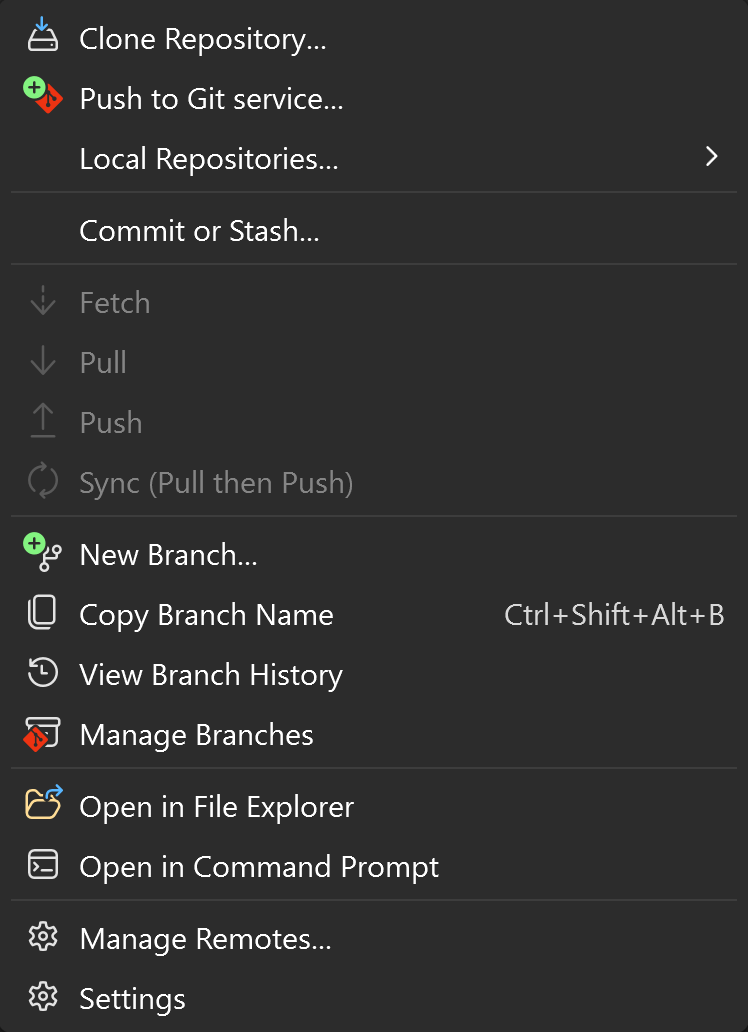
Pasting a branch name into a pull request, a ticket or a chat shouldn't mean retyping feature/1203-dark-theme by hand. Copy Branch Name puts the current Git branch on your clipboard with one click or Ctrl+Shift+Alt+B - and lets you copy any other branch straight from Visual Studio's branch lists.
What You Get
One shortcut - Press Ctrl+Shift+Alt+B anywhere in Visual Studio to copy the current branch.
Right where Git already lives - Copy Branch Name sits next to New Branch and Manage Branches in the Git menu, in the Git submenu when you right-click in the editor or Solution Explorer, in the Git Changes window's ... menu, and on document tabs next to Copy Full Path.
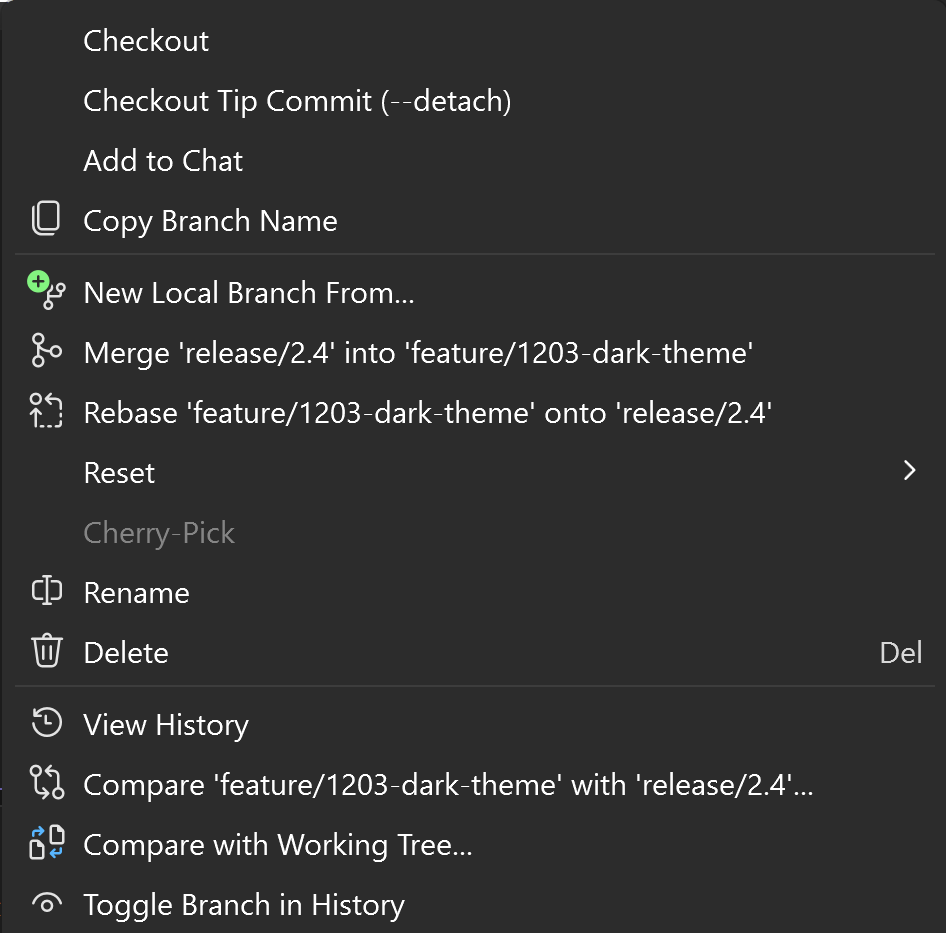
Any branch, not just the current one - Right-click a branch in the Git Repository window or in the branch picker to copy that branch's name.
Multi-repository aware - Copies the branch of the repository you're working in: the item selected in Solution Explorer, otherwise the active document, otherwise the solution.
Out of the way - The command only shows up while a Git repository is open.
Copy Any Branch
Right-click a branch in the Branches pane of the Git Repository window, or in the branch picker you open from the status bar or the Git Changes window, and choose Copy Branch Name. Remote branches are copied as shown, for example origin/feature/1203-dark-theme.
Keyboard Shortcut
| Action | Shortcut | Command |
|---|---|---|
| Copy the current branch name | Ctrl+Shift+Alt+B | CopyBranchName.CopyBranchName |
Rebind it under Tools > Options > Environment > Keyboard by searching for CopyBranchName. The branch-row command is CopyBranchName.CopySelectedBranchName and has no default shortcut.
Which Branch Gets Copied
The status bar confirms what was copied, for example Copied Git branch name 'feature/1203-dark-theme' to the clipboard (Contoso.Web). The repository is picked in this order:
- With Solution Explorer (or another tool window) active - the repository of the selected item.
- Otherwise - the repository of the active document.
- Otherwise - the repository of the open solution or folder.
Special cases:
- Rebase in progress - copies the branch being rebased.
- Detached HEAD - copies the full commit SHA and says so in the status bar.
- Worktrees and submodules - supported.
- Reftable repositories - not supported; the status bar says so.
How It Works
The current branch is read straight from the repository's HEAD file, so you always get the real branch name rather than Visual Studio's status-bar text, which can read Checking out... or Multiple branches.
Visual Studio doesn't tell extensions which branch row was right-clicked, so the branch-row entry reads the row under the mouse through internal Visual Studio members. If a future Visual Studio update changes them, that one menu entry disappears and everything else keeps working. To catch the very first right-click, the extension loads in the background once a repository is open.
Supports Visual Studio 2022 (17.0 and later) and Visual Studio 2026.
Contribute
Issues, ideas, and pull requests are welcome.
Open CopyBranchName.slnx in Visual Studio with the Visual Studio extension development workload and press F5 to debug the extension in the Experimental instance.