
Lore Gallery feed (extension)

Lore source control inside Visual Studio. Onboard a solution or folder, see file status glyphs, commit, and manage a local Lore server without leaving the IDE.
▼ Download- Author
- Mads Kristensen
- Version
- 1.0.39
- Updated
- 21 days ago
- Supports
- VS 2022 VS 2026 VS 2022 (ARM64) VS 2026 (ARM64)
Lore for Visual Studio



Download this extension from the Visual Studio Marketplace or get the latest CI build from Open VSIX Gallery.
Bring Lore source control directly into Visual Studio. Onboard a solution or folder, see file status at a glance, and commit - all without leaving the IDE or dropping to a terminal.
Add a solution to Lore
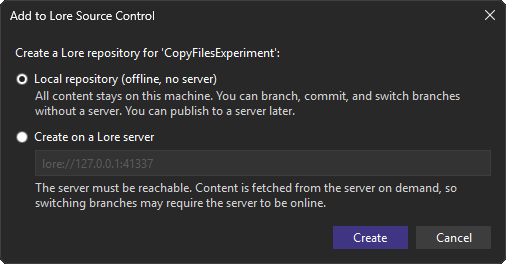
Open the solution or folder, then click the Add to Source Control button on the Visual Studio status bar (bottom-right) and choose Lore. Choose Local repository (the default) to create a fully offline repository where all content stays on your machine, so you can branch, commit, and switch branches without a server. Choose Create on a Lore server and enter a server URL (e.g. lore://127.0.0.1:41337) only when you want to bind a remote so you can push. Lore binds the loaded projects to the provider; the .lore folder records the binding so it is restored automatically the next time you open the solution.
Clone an existing repository
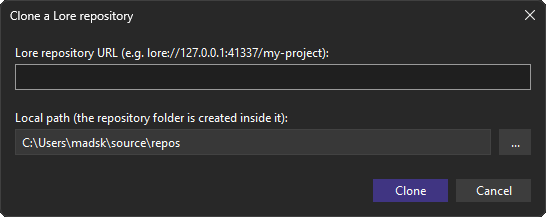
Right-click the solution node and choose Lore > Clone Lore Repository.... Paste a repository URL (e.g. lore://127.0.0.1:41337/my-project) and pick a local folder; Lore connects through the SDK, clones the working tree, and records the remote in .lore so push and pull work immediately. Clone and server-backed create do not require the server's optional HTTP health endpoint or assume an HTTP port relative to its Lore port. Connection and authentication errors are reported by the Lore operation itself.
See status at a glance
Once a solution is controlled, Visual Studio shows Lore status glyphs next to files in Solution Explorer. Saving a document refreshes its glyph automatically, and you can force a refresh any time with the Refresh button in the Lore Changes window.
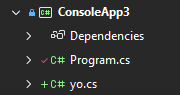
Right-click a file under Lore for Undo Changes (revert edits to the committed version), Compare with Unmodified (diff against the committed version), and Ignore and Untrack Item (adds it to .loreignore).
Review and commit in the Lore Changes window
Choose Lore > Commit to Lore... to open a dedicated panel, similar to the built-in Git Changes window.
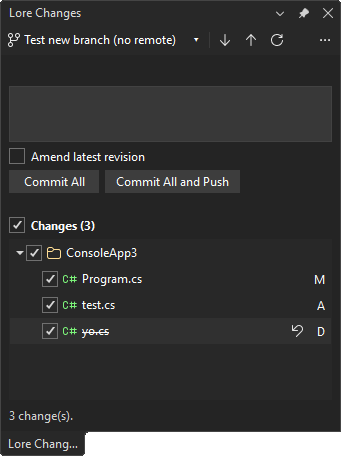
The window shows the current branch with incoming/outgoing indicators and arranges every changed file in a folder tree back to the repository root, each file showing a status badge (M, A, D, R, C) on the right. Renamed or moved files show an R badge, and hovering it reveals the path the file was moved from. Renames performed in Solution Explorer are tracked automatically. Changes made outside Visual Studio are detected through Visual Studio's shared file-change service and automatically refresh the window and editor status glyphs. From here you can:
- Pick exactly which files to include in the next commit. Every changed file has a checkbox (checked by default) and each folder has a tri-state checkbox that selects or clears all the files beneath it; the header checkbox toggles everything at once. Your selection is remembered across automatic refreshes while you compose the commit.
- Write a commit message and Commit All, or Commit All and Push in one step. When you exclude some files the buttons update to show how many are selected (for example Commit 2 / Commit 2 and Push) and only those files are committed. Tick Amend latest revision to fold the selected changes into the previous revision instead. Partial commits preserve excluded working files and recorded renames. Resolve or abort an in-progress merge before making a partial commit, so its staged resolutions are not reset.
- Expand or collapse folders, and double-click a file (or right-click > Open Diff) to compare the working copy against the committed version in the native Visual Studio diff viewer.
- Right-click a file and choose Discard Changes... to reset it to the last committed state.
- Use the toolbar to Pull (sync the latest remote revisions), Push committed revisions, or Refresh the change list.
If Pull falls back to local history because no remote is configured or the remote branch cannot be queried, the extension displays a warning and records it in the Output window. Local synchronization does not mean remote changes were fetched.
Lock non-mergeable files
In Solution Explorer, right-click one or more files and choose Lore > Lock before editing binary assets. Choose Lore > Unlock when you are finished. Files must belong to the same repository and already exist in the committed or staged snapshot. Locking does not stage, commit, or change file contents.
The Lore Changes window offers the same commands on a changed file and in its Locks list. The list shows all locks on the current branch, including unchanged files, with the server-reported owner. Changed rows display the owner alongside their normal M/A/D/R/C status; unchanged locked files are never added to the commit selection. Lock/Unlock targets the right-clicked file, independent of the checkboxes used for committing. The native context menu also supports the Menu key and Shift+F10.
Locks are refreshed on workspace/branch changes, explicit Refresh, and after Lock/Unlock. Document saves reuse the last lock result instead of requiring a server round trip for every edit. Lock status requires a reachable remote; failures are shown as Lock status unavailable, not as an empty successful query. Lock/Unlock uses the existing sign-in flow when the server requests authentication. Ownership comes from the authenticated server session, not the commit-author identity setting. The extension does not request force release or supply an alternate owner; server permissions still govern whether a lock can be released. Locks are scoped to a branch.
Manage branches
Choose Lore > Manage Branches... on the solution or folder, use the branch management button on the Lore Changes toolbar, or open View > Other Windows > Manage Branches.... The Lore Branches window provides:
- Branch information: identity, category, creator, creation timestamp, parent, branch point, ancestor stack, archived state, and separate local and remote revision tips.
- Compare branches: select explicit source (left) and target (right) branches to compare their committed snapshots. Double-click a file, press Enter, or use Open selected file diff for the native Visual Studio diff viewer. Renames preserve the original path, and added/deleted files use an empty side. The native three-way merge preview's base and potential conflict paths are shown separately from snapshot differences. Remote tips and uncached content may require a server connection. No merge or checkout is performed.
- Protect... and Unprotect...: confirmed native Lore protection changes. Server permissions apply when a remote is configured; otherwise the change affects local metadata. Lore's branch-info API does not expose protection state, so the window offers both explicit operations rather than guessing a toggle.
- Archive...: confirmed archive locally and on the configured remote. The current, default, and protected branches cannot be archived. No forced removal or layer/link cascade is requested. The native operation is not transactional: a remote failure can leave a partial archive, which is reported as a failure. Refresh branch information before retrying.
- Reset branch to revision...: enter a committed revision on the selected branch (or its branch point), then confirm the target and previous tip. Reset is local only and never pushes or rewrites the server branch. Resetting the current branch also updates its working files; resetting another branch leaves the current files alone. Save or close unsaved documents first, and commit or discard all working/staged changes and finish or abort any merge. If the tip changed since it was displayed, refresh and confirm again. The previous tip is recorded in the Lore Output window for recovery.
Use Refresh branches after changes made outside this window. Server operations use the existing sign-in flow and surface errors rather than reporting empty or successful results when the backend fails.
Browse revision history
Choose Lore > View History... to open the Lore History tool window - a read-only log of the repository bound to the open solution or folder. Cached history works offline; missing older revisions in a fresh clone are fetched from the remote as needed. Browsing history never changes your working tree.
The window loads the newest revisions first, a page at a time, so a repository with thousands of revisions stays responsive. Each row shows the first line of the commit message, the short revision hash, the author, and the local commit time; hover a row to see the full message, revision number, branch, and date. When more revisions are available, a Load more button appends the next page.
- Select a revision to load the files it changed (relative to its direct parent). File details are fetched only for the revision you select, not for the whole list.
- Ctrl+click two revisions to compare their complete snapshots, including nonadjacent revisions. The older revision is always the left side, regardless of selection order. Double-click a result to open the native Visual Studio diff viewer. Added and deleted files compare against an empty side; renamed files use their original path on the left. Historical read failures are reported rather than silently opening your working copy.
- Double-click a changed file to diff that revision against its direct parent in the native Visual Studio diff viewer. Added files open on their own, deleted files show their last content from the parent, and a root revision (which has no parent) opens the file as it was first committed. The diff is produced read-only and never touches your working tree.
The window follows the open workspace: switching solutions or folders re-resolves the repository automatically. When the current solution or folder is not under Lore source control, the window says so.
The log does not reload every time the window regains focus. It refreshes on its own after a Lore operation performed in the extension changes history - a commit, a pull, or a branch switch, create, or merge - and when the open workspace changes. To reload it yourself at any time, click Refresh on the Lore History toolbar.
Sign in to a server
Authentication happens automatically, only when it is needed. When a clone, push, pull, or server-backed create fails because the Lore server requires sign-in (or a saved session has expired), Lore asks whether you want to sign in. Confirm and your default browser opens to complete sign-in; when it finishes, the original operation is retried. The session is stored by Lore, so later operations against the same server do not prompt again. There is no separate sign-in command - just run the operation you want, the same way Git prompts through its credential manager.
The extension bundles the LoreVcs 0.10.0 SDK and its matching Windows native runtime; updating the separately installed Lore CLI does not update this payload. Lore 0.9 changed the credential store without migrating older sessions, so users upgrading from the previous extension may need to sign in again. Permission denials and connection failures are reported without repeatedly prompting for sign-in; only Lore's NotAuthenticated status triggers the sign-in/retry flow.
Work with branches
Click the branch button (showing the current branch name) on the Lore Changes toolbar to open the branch picker. From there you can:
- Switch to any other local branch (the current branch is marked and disabled).
- Choose New Branch... to open the create-branch dialog. Enter a name, see the branch you are basing it on (Lore always branches from the current revision), and choose whether to check out the new branch. Leave Checkout branch unchecked to create the branch without leaving your current one.
- Choose Merge Branch into Current... and pick a branch to fold it into the branch you are on. When the merge has conflicts, Visual Studio's built-in 3-way merge tool opens for each conflicted file (current, incoming, and base). Resolve and accept each one and Lore commits the merge automatically; close the merge tool without accepting to abort and restore the working tree.
Switching and merging are offline-first: when the target branch's content is already cached locally they complete without a network round trip. Lore's local store is an LRU cache, so content can be evicted; if a switch or merge needs content that is no longer cached, it is fetched from the Lore server. When that content is missing and the server is unreachable, the operation reports a clear message asking you to start (or reconnect to) your Lore server and try again. Remote-only branches also retry online when their names are not yet cached.
Settings
Configure everything under Tools > Options > Lore:
| Setting | Description |
|---|---|
| Identity | Commit identity (e.g. you@example.com). |
| Push after commit | Automatically push every successful commit. |
| Server port (gRPC/QUIC) | gRPC/QUIC port used to build repository URLs. Default 41337. |
Run the server integration tests
The server functional tests run without opening Visual Studio. They start a disposable Lore server bound only to loopback, with temporary storage and automatically selected ports, then exercise the actual brokered client, named pipe transport, worker, and native SDK. They verify server-backed create, clone, commit, push, pull, revision hashes, and file contents in both directions. The tests cover an HTTP endpoint on an independent port and HTTP disabled entirely, uncached history and historical diffs, then stop the server and verify that a connection timeout reports failure without requesting sign-in or altering files. They also verify branch-scoped acquire/query/status/release across two working copies, repeated acquisition, multiple files, rejected requests, and lock-query failure when the server is stopped. The unauthenticated local server uses a shared anonymous lock owner, so cross-user contention and unauthorized release require an authenticated server and are not claimed by these tests. Branch tests cover uncached remote comparisons, branch metadata, remote-only switch/merge, protection and rejected archive from a second working copy, unprotect/archive and fresh-clone verification, and a local reset that preserves the remote tip. They also verify that an unavailable server cannot report a successful protection change.
Build the solution first. Download and extract the Windows x64 Lore server 0.10.1 release, then run in PowerShell, substituting the path to the extracted executable:
$env:LOREVS_TEST_SERVER_PATH = 'C:\tools\loreserver.exe'
dotnet test LoreVS.slnx --configuration Debug --no-build --no-restore --filter 'TestCategory=ServerIntegration'
No existing repositories or installed Lore executables are changed. The tests stop their server and delete their temporary repositories afterward. Without LOREVS_TEST_SERVER_PATH, these tests are skipped; an invalid configured path fails the tests. CI downloads a checksum-pinned server and runs them with the rest of the suite automatically. This local server has authentication disabled; browser sign-in, credential migration, and authenticated permission checks still require a separately configured authentication service.
Get involved
Found a bug? Have an idea? Head to the issue tracker - pull requests are always welcome.