
Start Screen Gallery feed (extension)

A modern start screen for Visual Studio with recent projects, developer news, daily tips, and quick actions.
▼ Download- Author
- Mads Kristensen
- Version
- 2.0.234
- Updated
- 8 days ago
- Tags
- news, start
- Supports
- VS 2022 VS 2026 VS 2022 (ARM64) VS 2026 (ARM64)
Start Screen for Visual Studio


Less hunting. More coding.
Your projects, pull requests, Copilot conversations, and developer news - together in a start screen that feels right at home in Visual Studio.
Pick up where you left off, see what needs your attention, and get back to building.
Download from the Visual Studio Marketplace or get the latest CI build.
Requires Visual Studio 2022 or later. Free and open source.
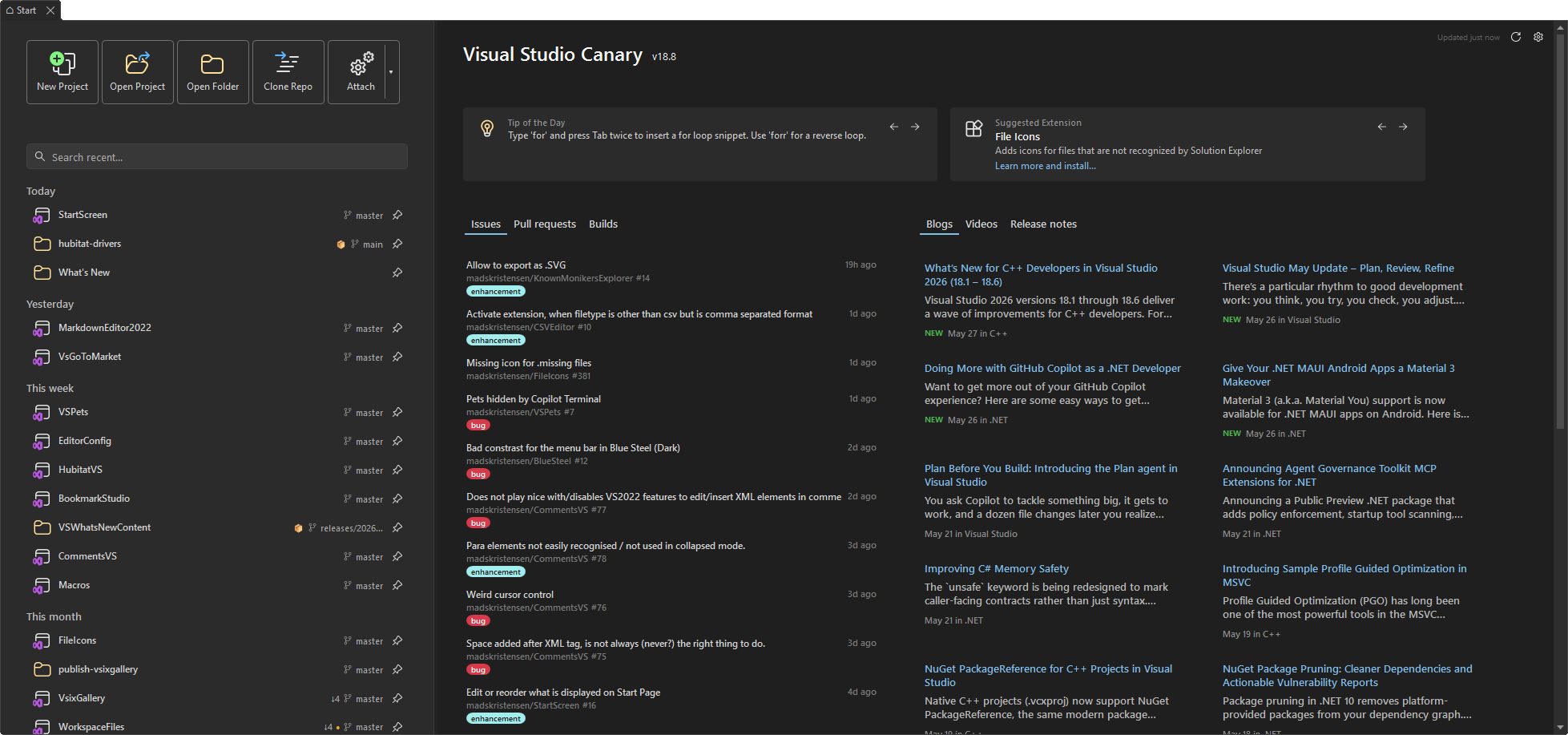
Start your next coding session here
| Instead of... | Start Screen lets you... |
|---|---|
| Searching for yesterday's solution | Find it as you type, or keep it pinned at the top |
| Opening repositories just to check their state | See branches, local changes, and ahead/behind counts before opening |
| Switching between browser tabs to find your next task | Bring pull requests, issues, and builds into your IDE |
| Hunting for the Copilot chat you were using | Return to recent conversations from your workspace dashboard |
| Missing the latest Visual Studio updates | Browse blogs, videos, and What's New alongside your work |
Your projects, ready when you are
Make your recent-project list a launchpad, not a filing cabinet.
- Find and pin your favorites. Search your saved history by project name, path, or tag (including partial, case-insensitive matches), pin frequently used workspaces, and drag pinned items into your preferred order.
- Filter Recent. Open the ... menu beside search and toggle Solutions only, the first command. Pinned items remain visible, and the setting is remembered. The clearing commands are grouped separately below it.
- See recent opens immediately. Date groups use Visual Studio's recorded last-opened time as soon as the list loads, without waiting for background Git or filesystem details.
- Organize projects with tags. Right-click a recent project and choose Add tags... or Remove tags... to open a compact tag selector. Hold Ctrl while clicking projects to select several, then right-click a selected project to tag them together. The Open commands and Copy Path are shown only for a single selected project. Adding or removing selected tags preserves their other tags. A tag disappears automatically from suggestions and filter chips when its last use is removed; any active filter for it is cleared. Tags share a compact details line with review requests and worktree counts. Long tag summaries truncate with the full list in a tooltip, keeping recent-project rows the same height as metadata loads. Rows scale with the Visual Studio font size. Click the tag chips below search to filter (all selected tags must match); Clear returns to all projects without removing tags. Tags are saved locally and work alongside search and pinned projects. Existing saved tags are retained; saved collections are no longer used.
- Know before you open. Check the current Git branch, uncommitted changes, ahead/behind counts, and last commit time at a glance. Newly opened projects and folders load these details and repository review counts automatically when they appear in the list.
- Switch between worktrees. Visible recent projects discover existing Git worktrees automatically in the background. A fork icon and count appear only when other working checkouts exist. Right-click a single project and choose Open Worktree to open a checkout in this window. Hold Shift while selecting a checkout to open it in a new Visual Studio instance instead. Entries show branch and folder names; the current checkout is checked and can also be opened in a new instance, and bare or prunable entries cannot be opened. Prune deleted worktrees... appears at the bottom of the flyout when stale, unlocked registrations exist. After confirmation it runs
git worktree prune --expire=nowand refreshes the badges and lists. It does not delete working files or branches, and locked worktrees are preserved. Do not prune worktrees that were moved or are on disconnected drives; pruning discards their registration and recovery information. Discovery itself remains read-only, cached per repository, shared across checkouts, and renewed when Start Screen is reopened or explicitly refreshed. It requires Git on PATH and limits concurrent discovery commands. - Start a workspace chat. Right-click one project and choose New Chat Session to create an empty, persistent Copilot conversation in that workspace's directory (the containing directory for solution or project files). No prompt is sent automatically. This uses optional Copilot harness capabilities: the backend must either already use that directory or support changing it. Start Screen waits for the new conversation to become active before changing and verifying its directory. Unsupported, failed, or canceled attempts remove only the newly created empty conversation. If cleanup also fails, the error includes both causes.
- Preview the work. Select one workspace to see its repository activity. A scope strip appears only when a workspace is selected; Clear filter returns to unfiltered activity and hides the strip. Selecting multiple projects keeps activity across all repositories instead of using the last clicked project. Double-click or press Enter when you're ready to open a workspace.
- Take the shortcut. Open a terminal or containing folder, fetch or pull Git changes, copy a path, or launch a new Visual Studio instance from the context menu. Opening, Copilot, Git, tagging, and list actions are separated into groups, with New Chat Session beside Delete Copilot Chat Sessions and Open Worktree, Git Pull, and Git Fetch together. Git Fetch updates remote-tracking branches and the workspace's ahead/behind counts without merging or changing your working files. Fetch and pull are disabled while either is running or a Git operation such as a merge is in progress. Both report failures explicitly and require Git on PATH with working stored credentials.
- Drop it and go. Drag files from File Explorer anywhere onto Start Screen, including over search, lists, and buttons, to open them in Visual Studio. Multiple files open together; solutions, projects, and folders still open as workspaces.
Need something new? The action bar puts Create a new project, Open, Clone, and Attach to process within reach.
See what needs you - before diving into code
Dev Hub brings activity from GitHub, Azure DevOps, and Bitbucket next to your projects. Spend less time finding the work and more time moving it forward.
My work gathers your pull requests, created or assigned issues and tasks, builds, and Copilot sessions. The Attention feed highlights known actions such as requested reviews, failing checks on your PRs, and assigned work.
Team activity keeps your teammates' pull requests, issues, and repository builds in view. GitHub PRs and issues are searched across the users and organizations owning your recent workspaces, including their other repositories and work you are not personally involved in. The dashboard makes one bounded search per owner and category, not full-detail requests for every recent repository. A custom search query replaces these owner-wide team searches, while your authored and assigned work remains independent of that filter. Select a recent workspace to load detailed activity for that repository, or choose All repositories for the bigger picture. Background updates from other providers preserve the selected repository's activity; overlapping automatic refresh requests do not start a second activity refresh.
Review pull requests in Visual Studio where supported, or open them on the web. Review and check status help you decide where to start; Ready to merge appears only when the provider supplies verified readiness.
Pin or snooze activity from a repository item's native context menu (right-click or Shift+F10). Choose Pin to Attention to add an active PR, issue, or build to Attention, including items from Team activity. Pinned items appear first. Unpin from Attention removes your pin; an item with an automatic attention reason stays until that reason clears or you snooze it. Completed items are not added to Attention. Snooze an item for one hour or one day to hide it from both activity feeds and their counts until it expires. Open the ... activity options menu beside the Builds tab in My work and select Show snoozed items to include them in both work feeds; the menu shows a check when enabled. Choose Unsnooze item on an item to restore it early. Pins and snoozes are saved locally; they do not change provider ownership, bypass repository scope or type filters, or fetch items outside the loaded activity.
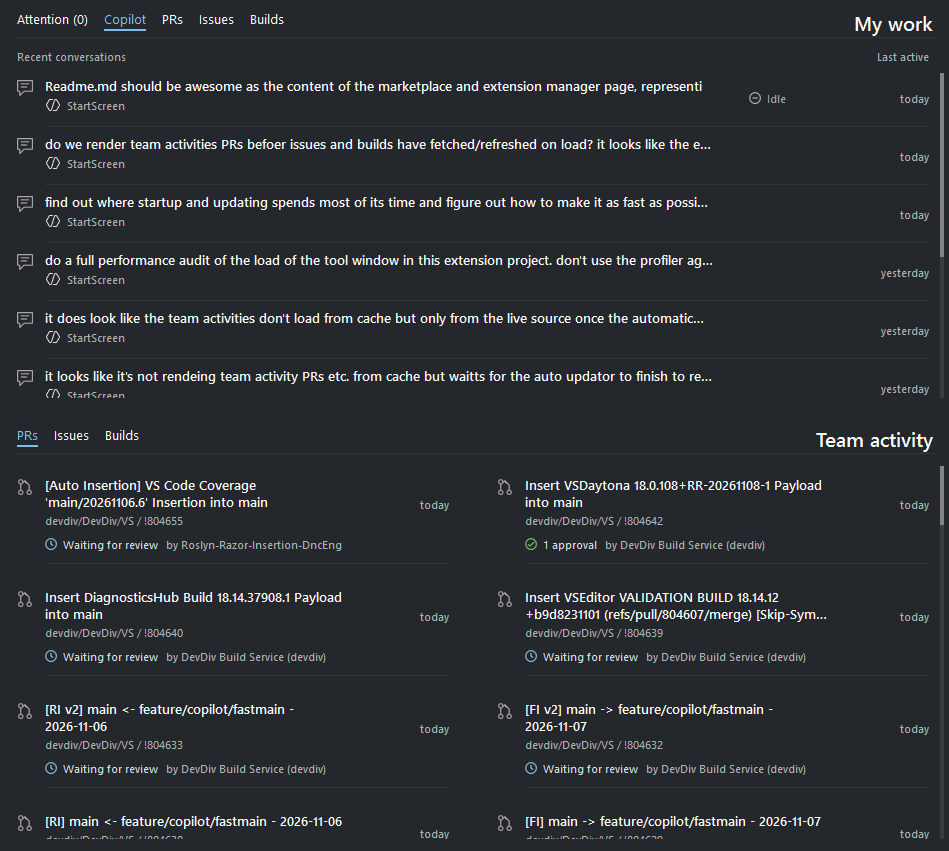
Repository activity requires a connected provider account. When a workspace is selected, account warnings and connection prompts apply only to that repository's provider; All repositories shows account recovery for all enabled providers. Account recovery and account-verification warnings wait until all active activity refresh requests finish, so intermediate snapshots do not briefly suggest reauthentication. Available activity and actions vary by provider and permissions; these are recent activity feeds, not exhaustive repository inventories.
Activity on startup. My work and Team activity restore the last saved dashboard after checking the current credentials, query, and workspace repository context. Previously verified accounts have a persisted, credential-bound signature, so matching accounts can display saved activity without waiting for an online identity check. The signing key stays in Windows Credential Manager; dashboard files contain neither tokens nor signing keys. Old caches without a signature, changed credentials, and expired credentials require online verification. Account changes, disconnects, and authentication rejection invalidate saved bindings.
The three-hour cache lifetime triggers a background refresh; it does not discard yesterday's content. Startup reuses saved workspace remotes even after their metadata expires, avoiding a Git scan of known workspaces before showing cached activity. Workspaces without saved remotes still require local discovery, and acquiring the current credential may take time. A locally restored account is validated online during background refresh without extending its verification lifetime. Saved results remain visible during validation and temporary network failures, with explicit stale/error status; a rejected or different account cannot restore those results. Refreshing activity reuses recent online verification rather than forcing another identity request.
GitHub personal and owner-wide searches run concurrently under a shared three-request search limit, and publish results as individual searches finish without waiting for slower searches or optional review/check metadata. Cached items remain visible until a category finishes, and failed categories retain their previous items where available. Workflow runs have no user/organization-wide list API: builds still use repository-specific requests for recent workspaces and up to five recently pushed repositories, three at a time, and publish completed inventories without blocking PRs or issues. Selected-repository details also refresh concurrently by category. Slow API responses, search throttling, and optional metadata can still extend a refresh.
Keep Copilot in the loop
Your next step can start right from the work item.
- Fix with Copilot starts a local Visual Studio chat for an issue or task.
- Investigate with Copilot brings a failed build's context into a new chat.
- Continue in Copilot returns to a conversation started for that item, without sending the same prompt again.
- Request Copilot Review requests a review on supported GitHub.com pull requests, with confirmation.
The Copilot tab also brings recent Visual Studio and CLI conversations, plus GitHub cloud-agent tasks, into view. Open a conversation in its originating app; supported live Visual Studio sessions can surface questions or permission requests in Attention.
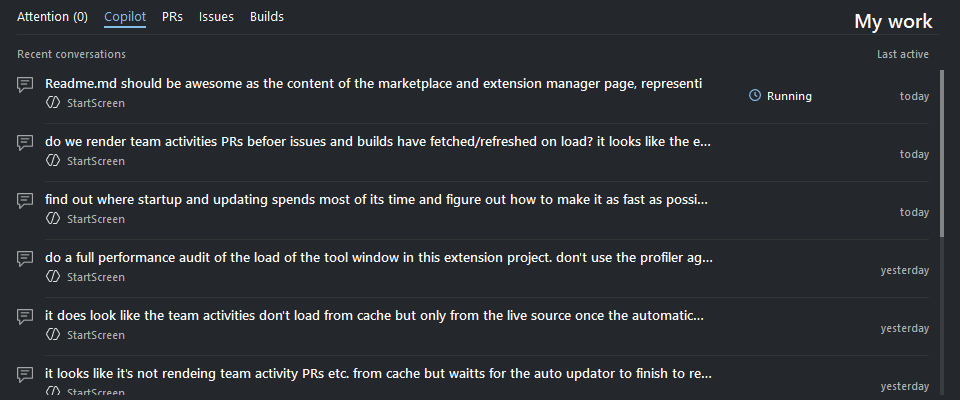
Copilot integration is optional and experimental, and depends on compatible installed Visual Studio Copilot components. CLI resume requires the Copilot CLI on PATH. Cloud tasks and review requests require the relevant GitHub permissions and Copilot access; review requests may consume Copilot usage. Start Screen never answers permission requests automatically.
Stay current without leaving your IDE
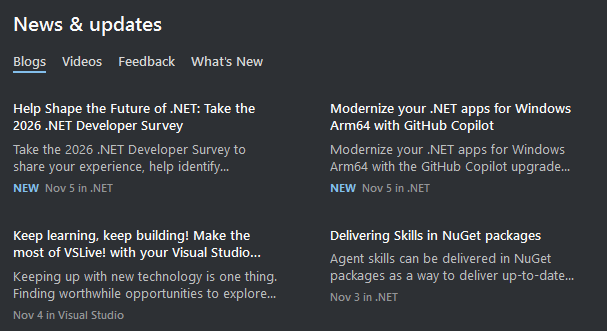
The News & updates sidebar gives you more than headlines:
- Blogs - curated developer news from sources including the Visual Studio and .NET blogs, with support for your own RSS or Atom feeds.
- Videos - recent videos from the Visual Studio YouTube channel.
- Events - upcoming developer conferences, with descriptions, thumbnails, and confirmed dates and locations on one line. Click an event card (or press Enter or Space when focused) to open its official page in your default browser. Routine update and cache messages are hidden; errors and empty-state notices remain visible. Visual Studio Live! entries link to the Visual Studio subscriber discount benefit; eligibility and the amount depend on your subscription and the event.
- What's New - features shipped with your installed Visual Studio version.
- Feedback - Developer Community tickets you created or upvoted, with their latest status, using your signed-in Visual Studio account.
Browse when you want to. Background loading and local caches keep available content close at hand; Feedback, Videos, and Events load on demand.
Events load only when you activate the Events tab, using the HTTPS raw events feed. The schedule and thumbnails are cached locally for seven days. When the schedule expires, HTTP conditional requests use saved ETag and Last-Modified validators when available. A 304 Not Modified response reuses the saved schedule without downloading JSON and starts a new seven-day cache window. Refresh while Events is selected to bypass the schedule's freshness check and revalidate immediately; refreshing other pages never downloads events. Failed updates retain the last good schedule with an explicit stale-cache message and do not reset its freshness. Without a cached schedule, an unavailable feed shows a retry message rather than inventing events. Ended events and entries without an exact start date are hidden on each activation, even when the cache is fresh. Ongoing events remain visible, followed by upcoming events in chronological order.
To curate conferences, edit events.json and publish it to the repository's master branch. Keep version at 1. Each dated entry needs name, description, startDate (ISO yyyy-MM-dd), location in City, Country format (or Virtual for online-only events), an HTTPS url, and an HTTPS PNG/JPEG thumbnailUrl; endDate is optional and inclusive. Keep official verification links in sources. Set subscriberDiscountUrl only for confirmed benefits. Unknown dates remain null until officially announced; do not infer next year's dates. The initial list includes .NET Conf as well as the requested conference families, with Build 2027, GitHub Universe 2027, and DEVintersection waiting for confirmed dates. No bundled copy is used as a substitute for the live feed: the new JSON must be published before the raw URL can serve it.
Make it feel like your Visual Studio
Start Screen follows your IDE theme and font settings, including High Contrast. Native context menus and familiar controls keep it feeling like part of Visual Studio, not a separate app.
Prefer a simpler dashboard? Hide Dev Hub and give news more space. Customize provider connections, activity sorting, and GitHub team queries. Your pinned projects and feed preferences are saved automatically.
Keyboard-friendly from the first click:
| Shortcut | Action |
|---|---|
| Ctrl+Shift+Alt+Backspace | Open Start Screen |
| Alt+` | Focus recent-project search |
| Arrow keys | Navigate projects, activity, and news |
| Enter | Open the selected item |
| Ctrl+Enter | Open a selected recent workspace in a new VS instance |
| P | Pin or unpin a selected recent workspace |
| Shift+F10 | Open the focused item's context menu |
Get started in three steps
- Install from the Visual Studio Marketplace. You can also search for Start Screen in Visual Studio's Extension Manager.
- Restart Visual Studio to finish installation.
- Open File > Start Screen, use the Home button on the Standard toolbar, or press Ctrl+Shift+Alt+Backspace. Pin your favorite workspace and connect the providers you use in Dev Hub settings.
Start Screen appears when no solution or folder is open and returns after you close a solution. On first use, it disables the built-in Start Window so you don't have two competing launch experiences.
Your recent projects and news work without connecting a repository provider. Add Dev Hub and Copilot when you're ready.
Contributing
This is a passion project, and contributions are welcome!
- Found a bug? Open an issue
- Have an idea? Suggest a feature
- Want to contribute? Pull requests are always welcome. Explore the source code to get started.